

The Builder
Visual Builder
Published @ 28/12/2025 by

Hey there, it's Nevrie! 👋
Welcome to the Visual Canvas. We’ve built a professional-grade design environment that gives you total freedom over every pixel.
Before you start building, let’s get you familiar with where everything lives.
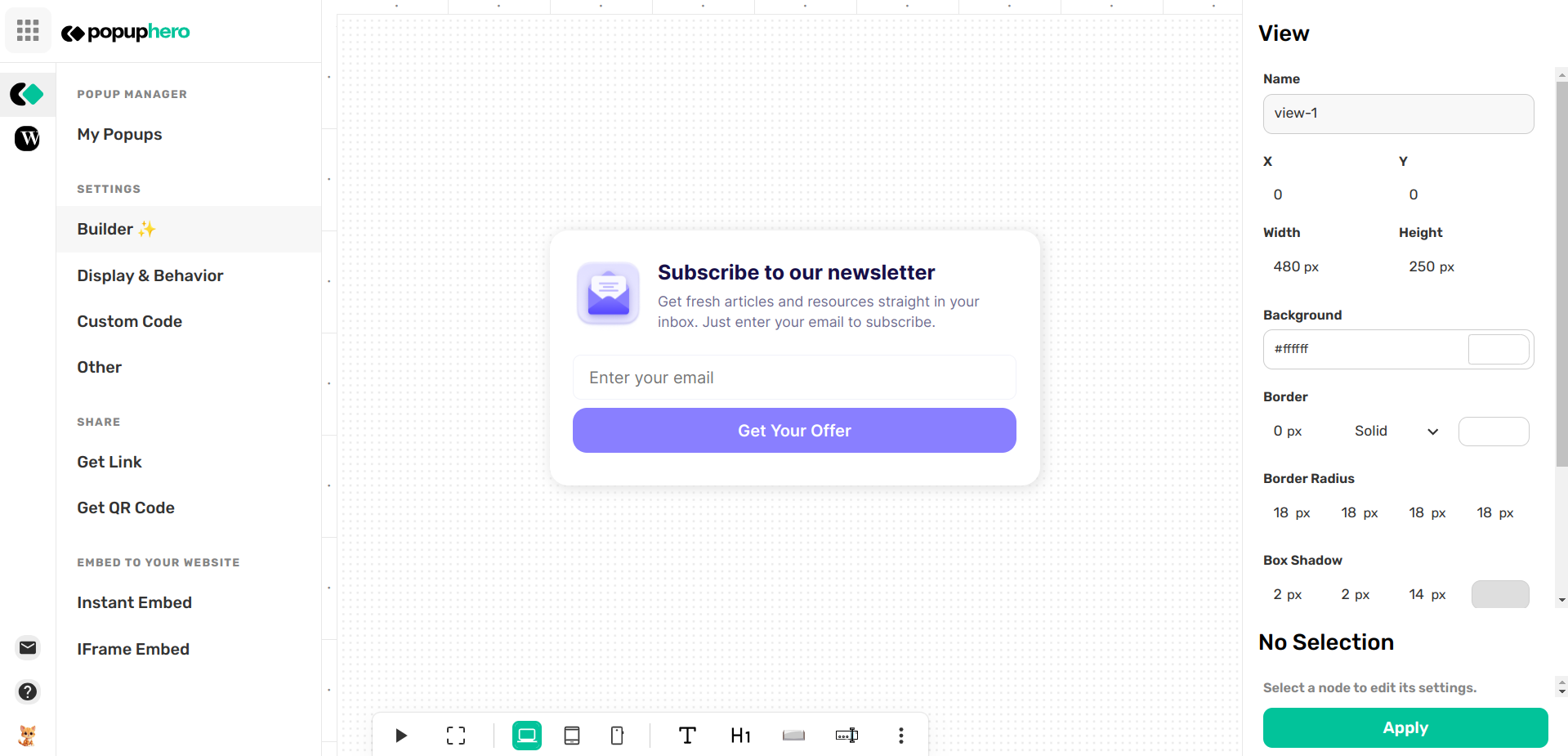
1. The Main Canvas (Center)
This is your playground. Unlike other builders that use fixed "slots," our canvas is a free-roaming space.
- Drag & Drop: You can grab any element and move it anywhere. Want a button to overlap an image? Just drag it there.
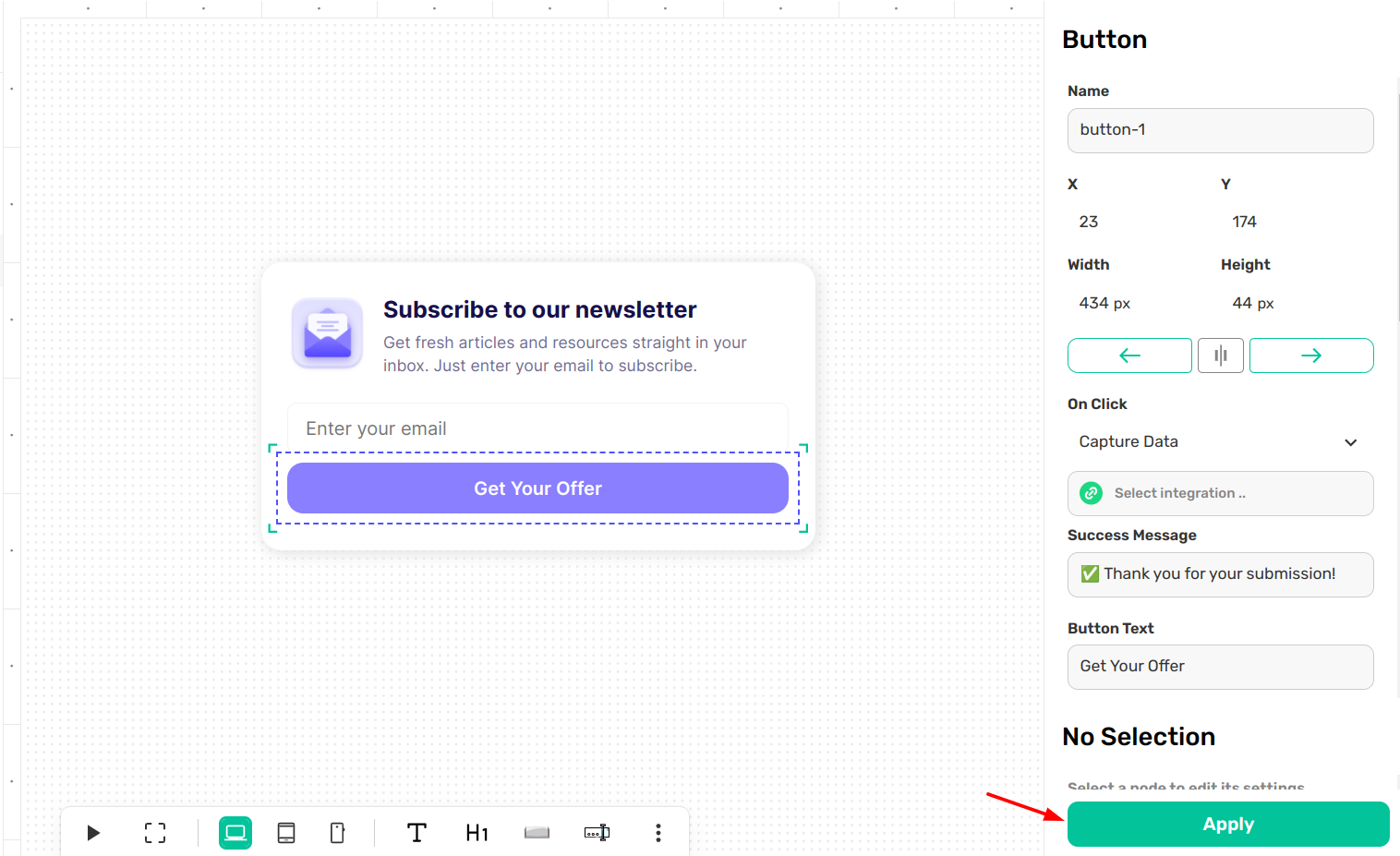
- Selection: To edit anything, just click on it. You'll see a blue highlight around the active "node," and its specific settings will appear on the right.

2. The Smart Settings Sidebar (Right Side)
The right sidebar is where the "surgical" control happens. It stays empty until you select an element on the canvas.
- Context-Aware: If you click a Button, you’ll see button settings. If you click a Text block, you’ll see font settings.
- Design Controls: This is where you tweak the "math" (width, height, X/Y position) and the "look" (colors, shadows, borders, and rounded corners).
- Apply Changes: Once you’ve made your tweaks, hit the green Apply button at the bottom to save those specific settings.
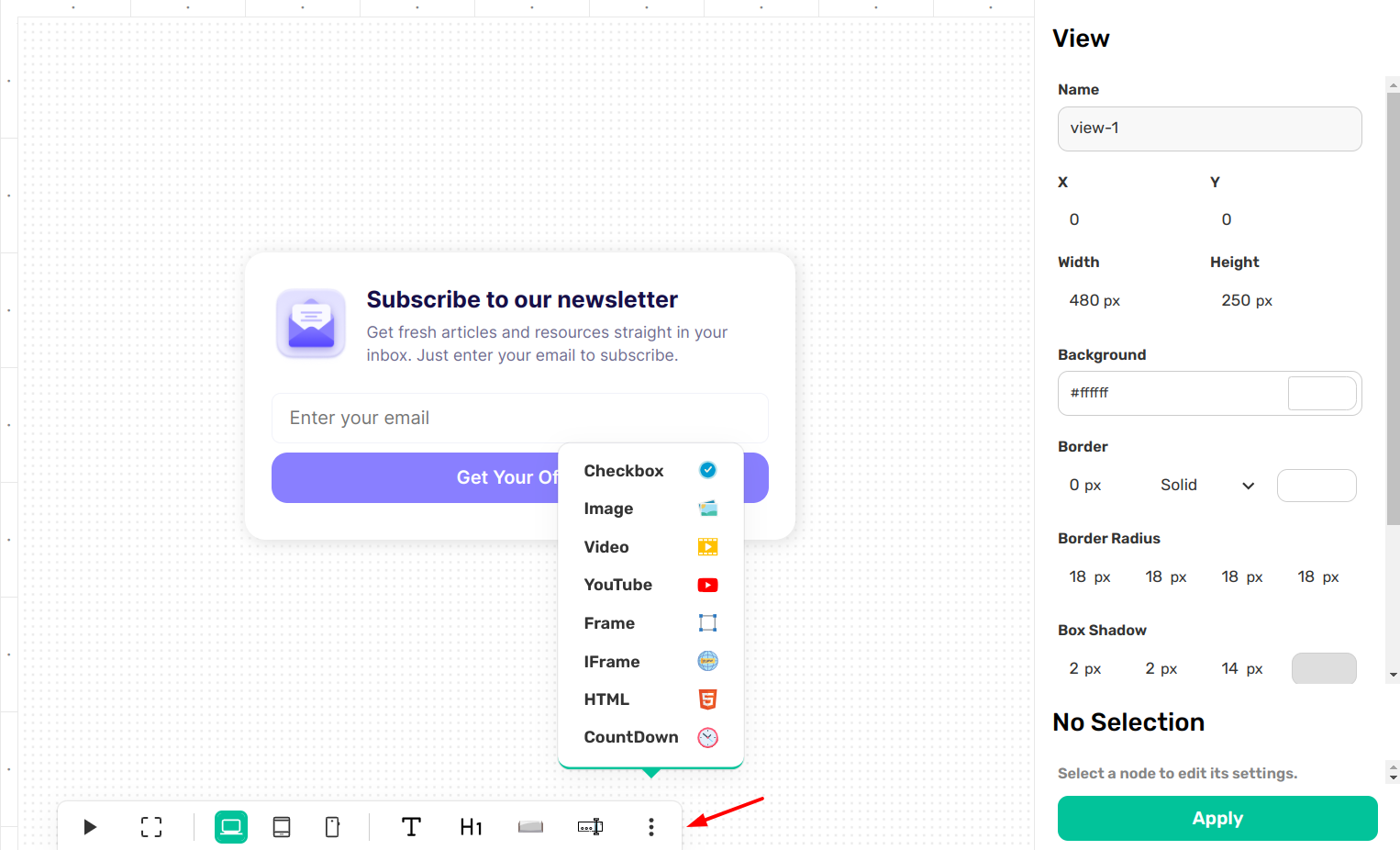
3. The Bottom Toolbar
This is your quick-access command center for adding new elements and managing your view.
- ElementDesigning and Styling Blocks Shortcuts: Quickly drop in Text, Headings, Images, or Forms using the center icons.
- More Blocks: Click the three dots (⋮) on the right of the toolbar to open the full library of blocks like Countdown Timers and Social Media links.
- Viewport Switcher: Icons on the left of the toolbar let you switch between Desktop, Tablet, and Mobile views to ensure your popup looks perfect on every device.
4. The Sidebar Navigation (Left Side)
While the right side is for designing, the left side is for managing.
- Builder: This is your current view where you design the popup.
- Display & Behavior: This is where you decide when the popup shows up (triggers, exit-intent, etc.).
- Instant Embed: Use this to grab your code and get the popup live on your site.
Navigating the canvas might feel a little different at first if you're used to basic templates, but once you get the hang of clicking nodes to edit them, you’ll see how much faster it is to build exactly what you want.
Happy designing! 🚀