

The Builder
Styling Blocks
Published @ 28/12/2025 by

Hey there, it's Nevrie! 👋
Now that you know your way around the interface, let’s talk about the fun part: actually building and styling your popup. Because our editor is a "Visual Canvas," you aren't just filling out a form,you’re designing a masterpiece element by element.
1. Adding a Block
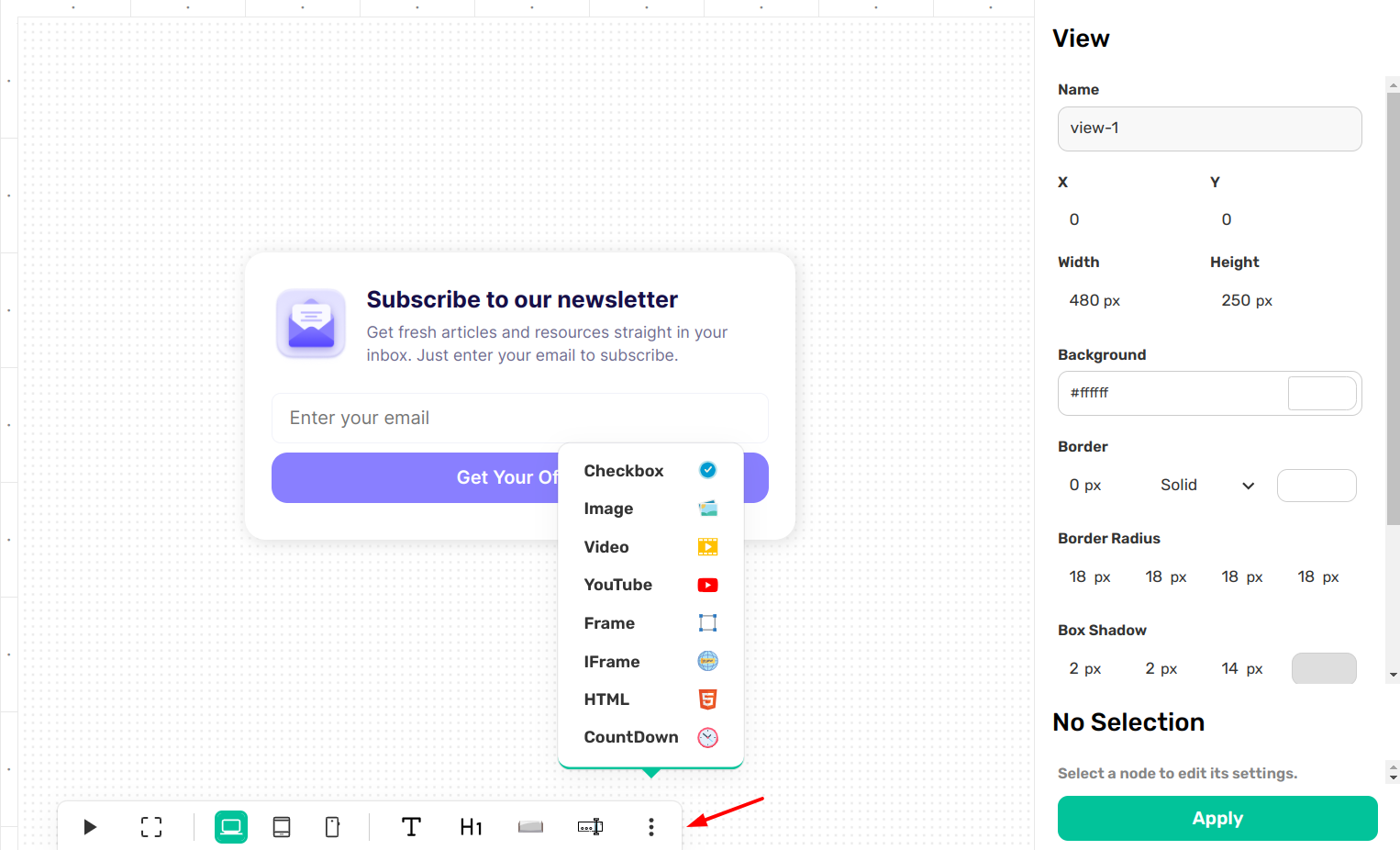
Everything starts at the Bottom Toolbar.
- The Essentials: Click the icons for Text, Heading, Image, or Input to drop a new element onto the canvas.
- More Options: Click the three dots (⋮) to see the full library, including Countdown Timers, Social Media icons, and Video blocks.
- Placement: Once a block is on the canvas, just click and drag it to where it looks best.
2. Activating a "Node"
To change how something looks, you first need to "activate" it.
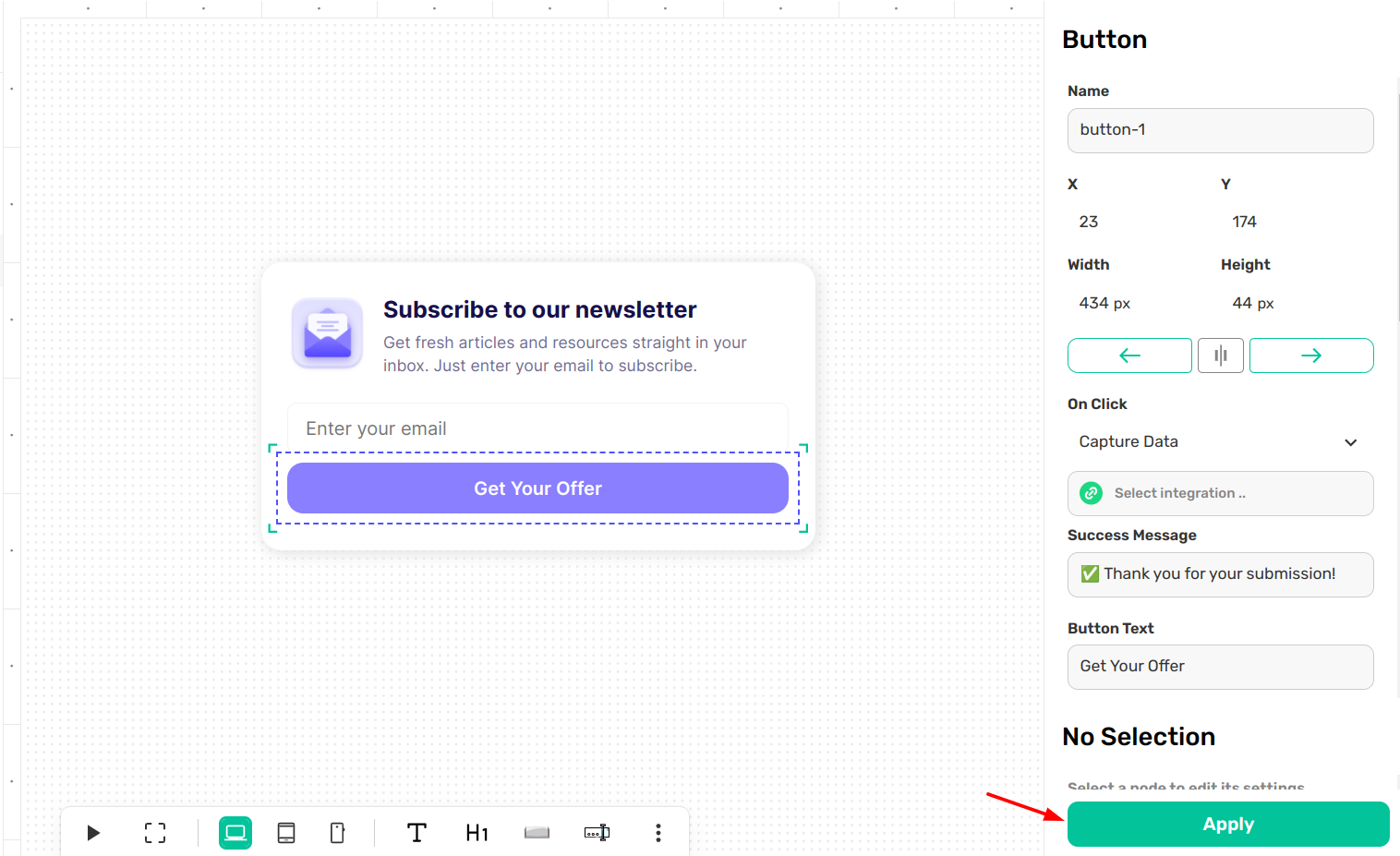
- Simply click any element on the canvas (we call these "nodes").
- You’ll know it’s active when a blue border appears around it.
- The moment you click, the Right Sidebar will populate with all the specific settings for that exact block.

3. The Styling Sidebar (Your Toolkit)
The right sidebar is where you get "surgical" with your design. While every block has unique settings, most will share these core features:
Typography & Colors
For text and buttons, you can change the font, size, weight, line height, letter spacing and color.
Layout (The Math)
Control the exact Width and Height of your block. You can also see the X and Y coordinates, this is helpful if you want to align two different blocks perfectly.
Borders & Corners
Want a sleek, modern look? Change the Border Radius to round the corners of your images or buttons.
Shadows & Depth
Add a Box Shadow to give your popup a 3D effect and the color of the shadow to make it as subtle or as bold as you like.
4. Saving Your Progress
Unlike simple editors, our Visual Canvas allows for complex tweaks. Once you are happy with how a specific node looks:
- Look at the bottom of the Right Sidebar.
- Hit the green Apply button.
- This saves the settings for that specific element so you can move on to the next one.
Pro Tip: If you want to delete a block, just select it and hit the Delete or Backspace keys.
Next Step: Ready to make sure this looks great on phones? Let’s check out our guide on Mobile Optimization.