

Integrations & Data
Syncing Your Data
Published @ 28/12/2025 by

Hey there, it's Nevrie! 👋
Creating a beautiful popup is just the first step. The real power of PopupHero comes from Syncing your Data. This feature allows you to capture information from your input fields and automatically send it to your favorite marketing tools, databases, or spreadsheets.
Here is a quick overview of how the integration system works.
How Data Capture Works
In PopupHero, data is captured through Action Buttons. When a visitor enters their information into an input field (like an email address) and clicks a button, the system triggers an "Integration Event."
To set this up, you need to tell your button exactly what to do when it's clicked.
Connecting an Integration
To link your popup to an external tool, follow these steps in the Builder:
- Select your Button: Click on the button in your popup design to activate its settings on the right sidebar.
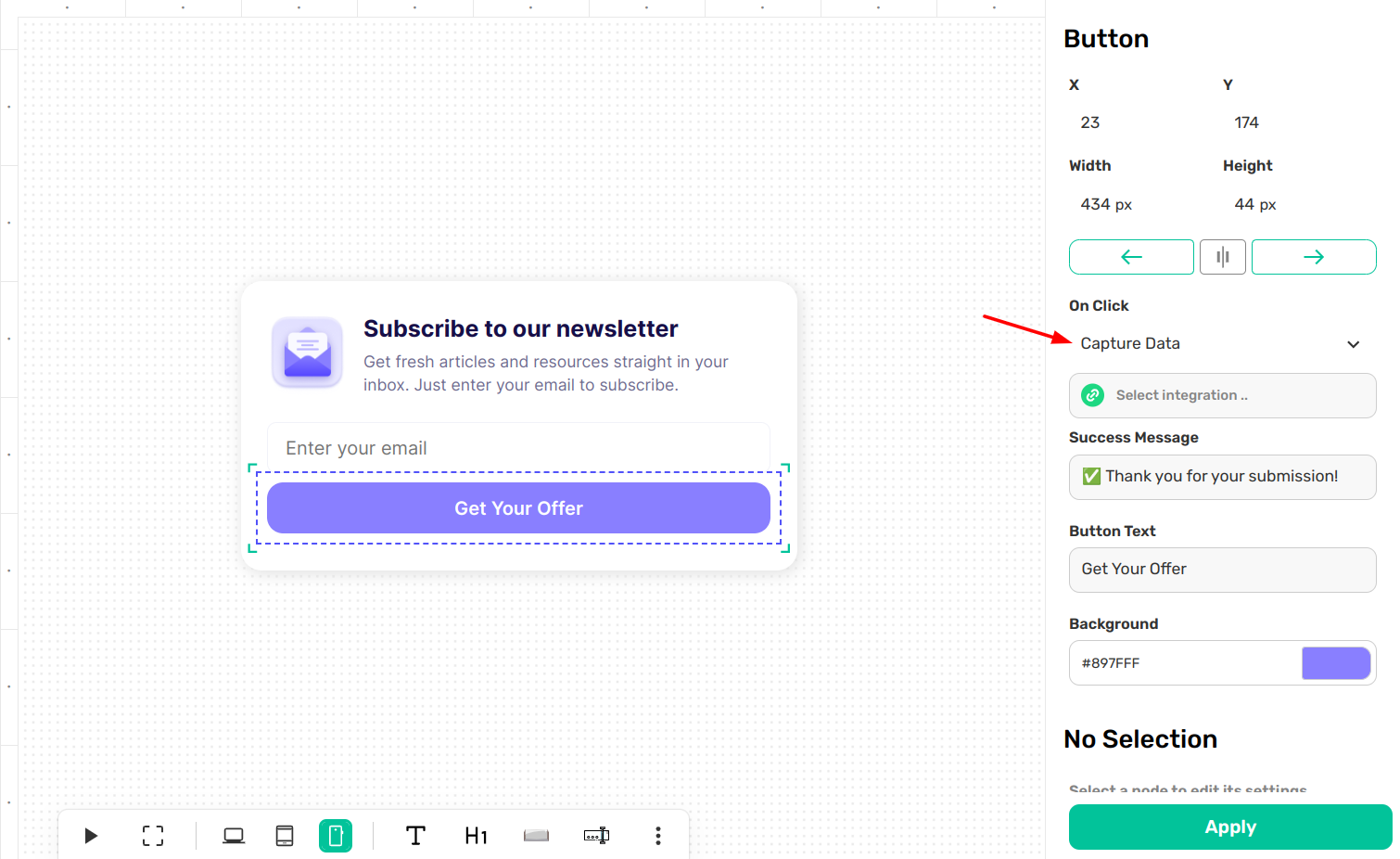
- Set the Action: In the settings panel, look for the On Click dropdown menu.
- Choose Capture Data: Select Capture Data from the list. This tells PopupHero that this button is responsible for gathering the information entered by the visitor.
- Pick your Integration: A new field will appear labeled Select integration. Click here to choose which connected service (like Google Sheets, Brevo, or Notion) should receive the data.
Success Messages
Once a visitor successfully submits their data, you want to let them know! In the same sidebar, you can customize your Success Message. This text will appear instantly after the button is clicked, confirming that their information has been sent.
Keep in mind: This is just a general overview of how to trigger an integration. Some tools, like Google Sheets, require a few extra steps to map your columns correctly.
Ready to dive deeper? Check out our specific guides for:
- Syncing with Google Sheets
- Connecting to Brevo
- Managing Notion Databases