

Integrations & Data
Connecting to Notion
Published @ 28/12/2025 by

Hey there, it's Nevrie! 👋
If you use Notion to manage your leads, feedback, or CRM, you are going to love this integration. You can send captured data directly to a specific Notion page, keeping your workspace organized without any manual data entry.
Here is how to set it up.
1. Create a Notion Integration Token
To allow PopupHero to write to your Notion workspace, you need an Internal Integration Token:
- Go to the Notion My Integrations page.
- Create a new integration and copy the Internal Integration Token.
- Important: Make sure you go to the specific Notion page you want to use, click the "..." menu at the top right, and select Add connections to invite your new integration to that page.
2. Activate the Integration in the Builder
Head back to your PopupHero builder to link your account:
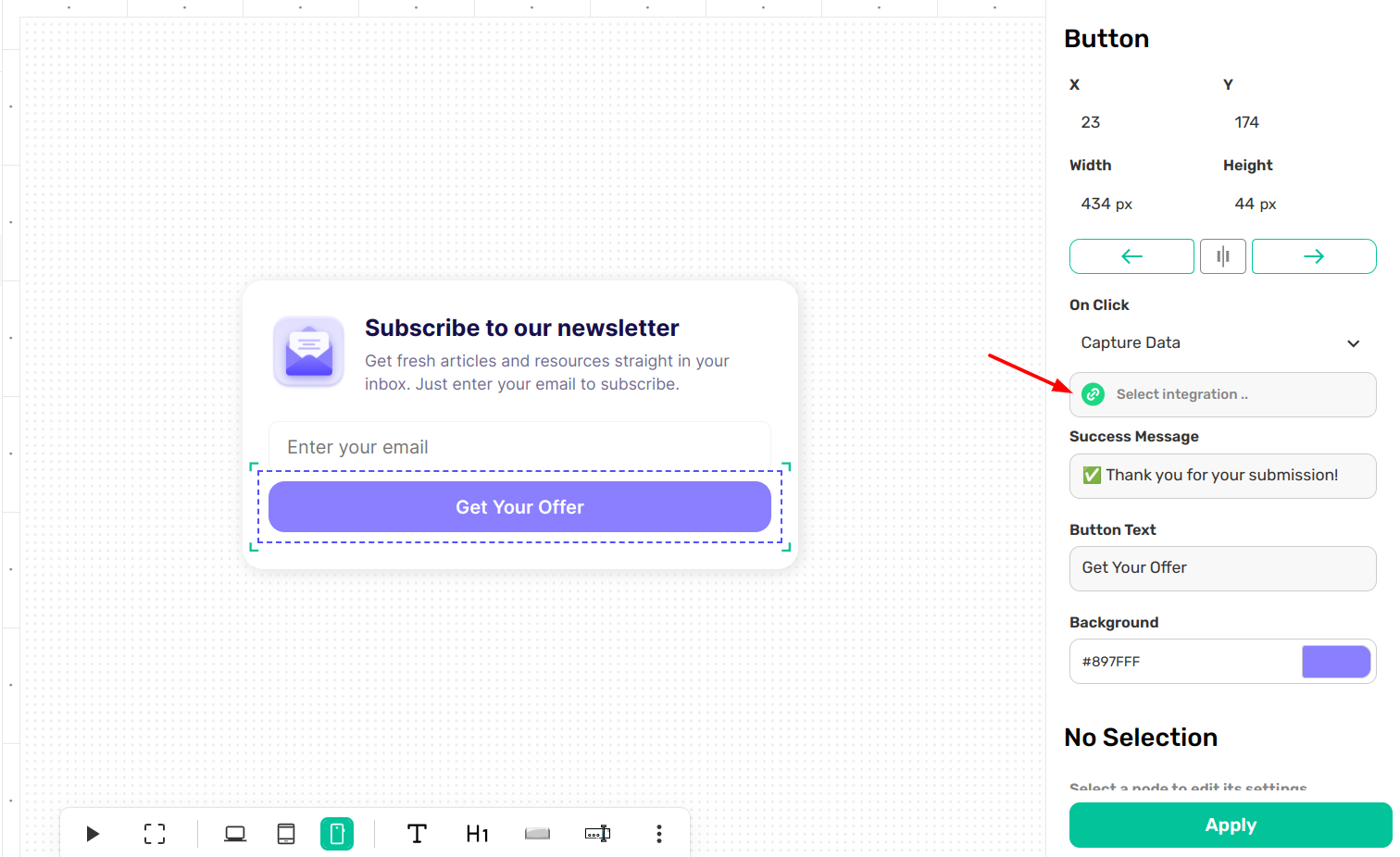
- Click on your Action Button (the one that submits the form).
- In the right sidebar, set the On Click action to Capture Data.
- Click on the Select integration field.
3. Configure the Notion Modal
When the integrations modal opens, find Notion in the sidebar. You will need to fill in the following details:
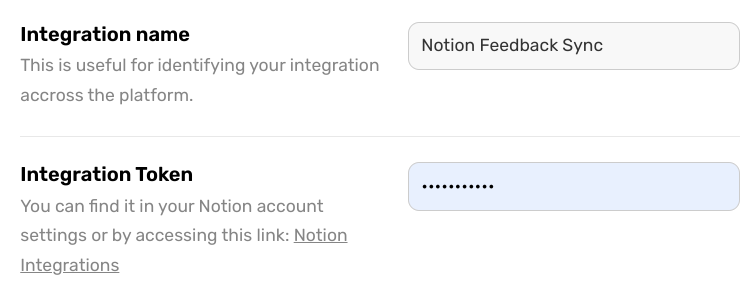
Integration Name & Token
- Integration Name: Give this a name you'll recognize, like "Notion Feedback Sync."
- Integration Token: Paste the token you created in step 1.
Page ID
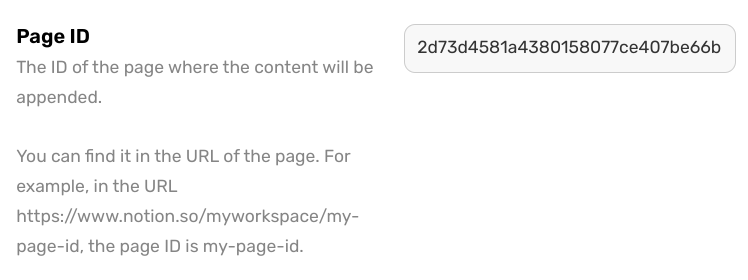
This tells PopupHero exactly which page to send the data to.
- Look at the URL of your Notion page.
- The ID is the last part of the URL. For example, in
https://www.notion.so/my-workspace/my-page-id, the ID ismy-page-id. - Paste that ID into the Page ID field.
Content (Mapping your Data)
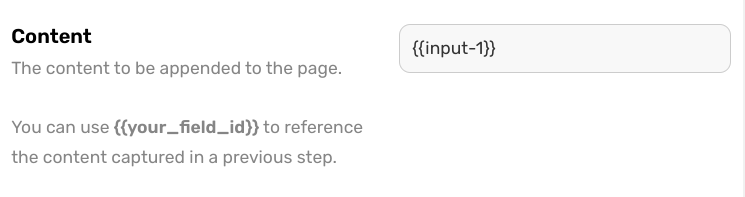
This is where you decide what text actually gets sent to Notion.
- Click the field to open the dropdown menu.
- Select the pre-generated IDs (like input-1) for the data you want to append.
- You can combine multiple IDs or add your own text here to format how the message appears in Notion.
4. Save and Apply
Once you’ve filled in these details, click the green Save button in the modal. Finally, hit Apply in the main sidebar to lock in your settings.
Now, every time a visitor submits your popup, the data will be instantly appended to the bottom of your chosen Notion page! 🚀
Next Step: You've mastered the main integrations! Are you ready to head into the Whitelabel FAQ to learn how to brand the platform as your own?