

Integrations & Data
Connecting to Google Sheets
Published @ 28/12/2025 by

Hey there, it's Nevrie! 👋
Ready to see your leads populate in real-time? Connecting your popup to Google Sheets is one of our most popular integrations because it keeps your data organized and accessible.
Follow these steps to set up the Append Row integration.
1. Prepare your Google Sheet
Before heading into the builder, open the Google Sheet you want to use. You must share this document so our system has permission to write to it.
- Click the Share button in your Google Sheet.
- Share the document with this specific service account email:
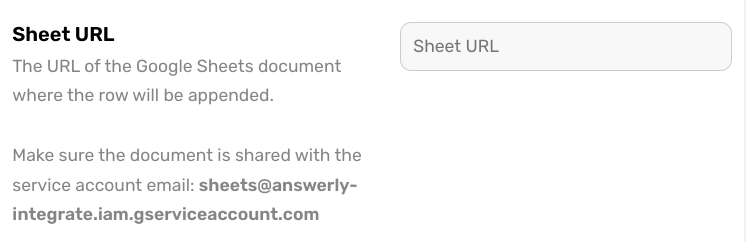
sheets@answerly-integrate.iam.gserviceaccount.com.
2. Activate the Integration in the Builder
Once your sheet is ready, go back to the PopupHero builder:
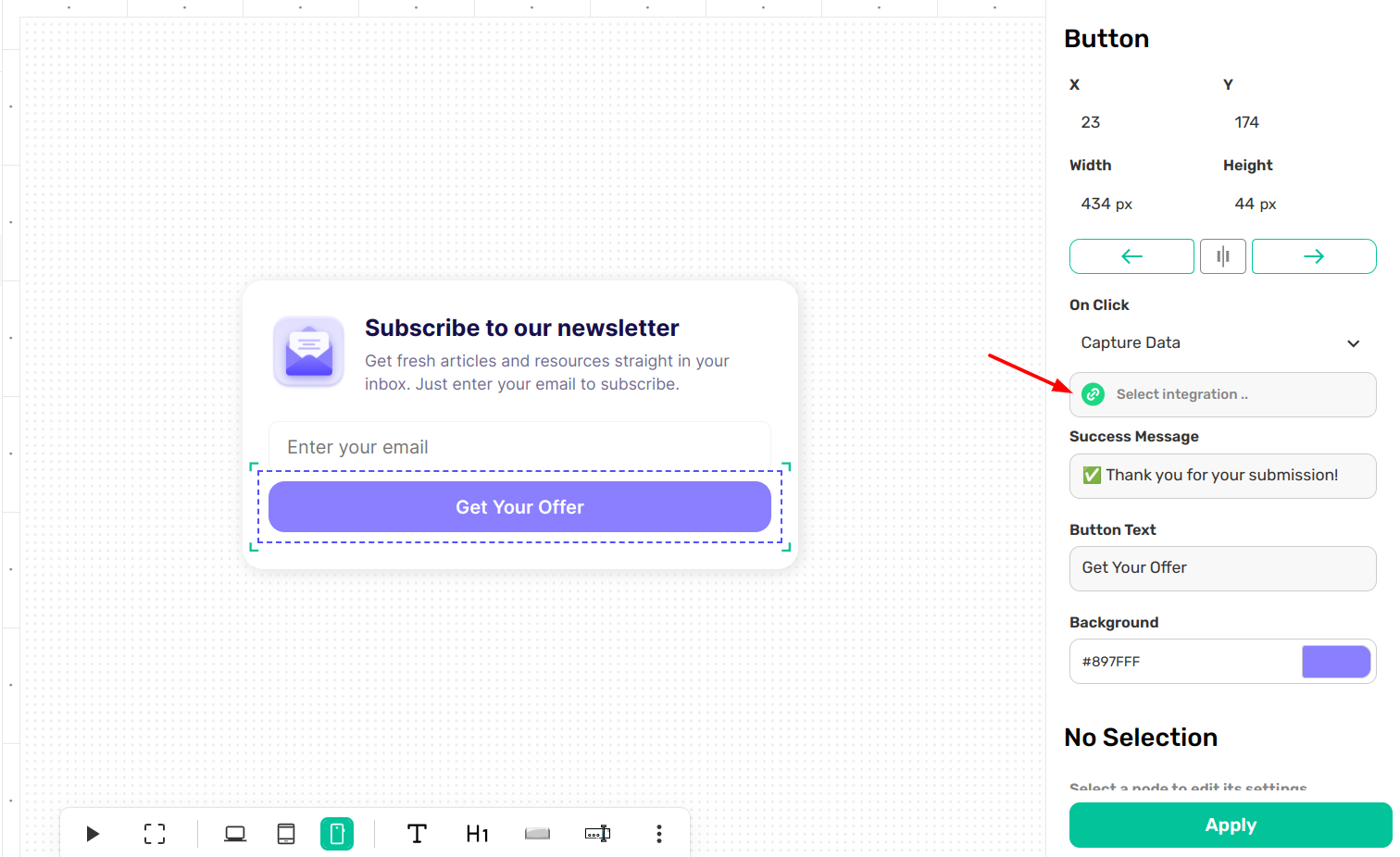
- Click on your Action Button (e.g., "Get Your Offer") to open the settings on the right.
- Set the On Click setting to Capture Data.
- Click on the Select integration field.
3. Configure the Google Sheets Modal
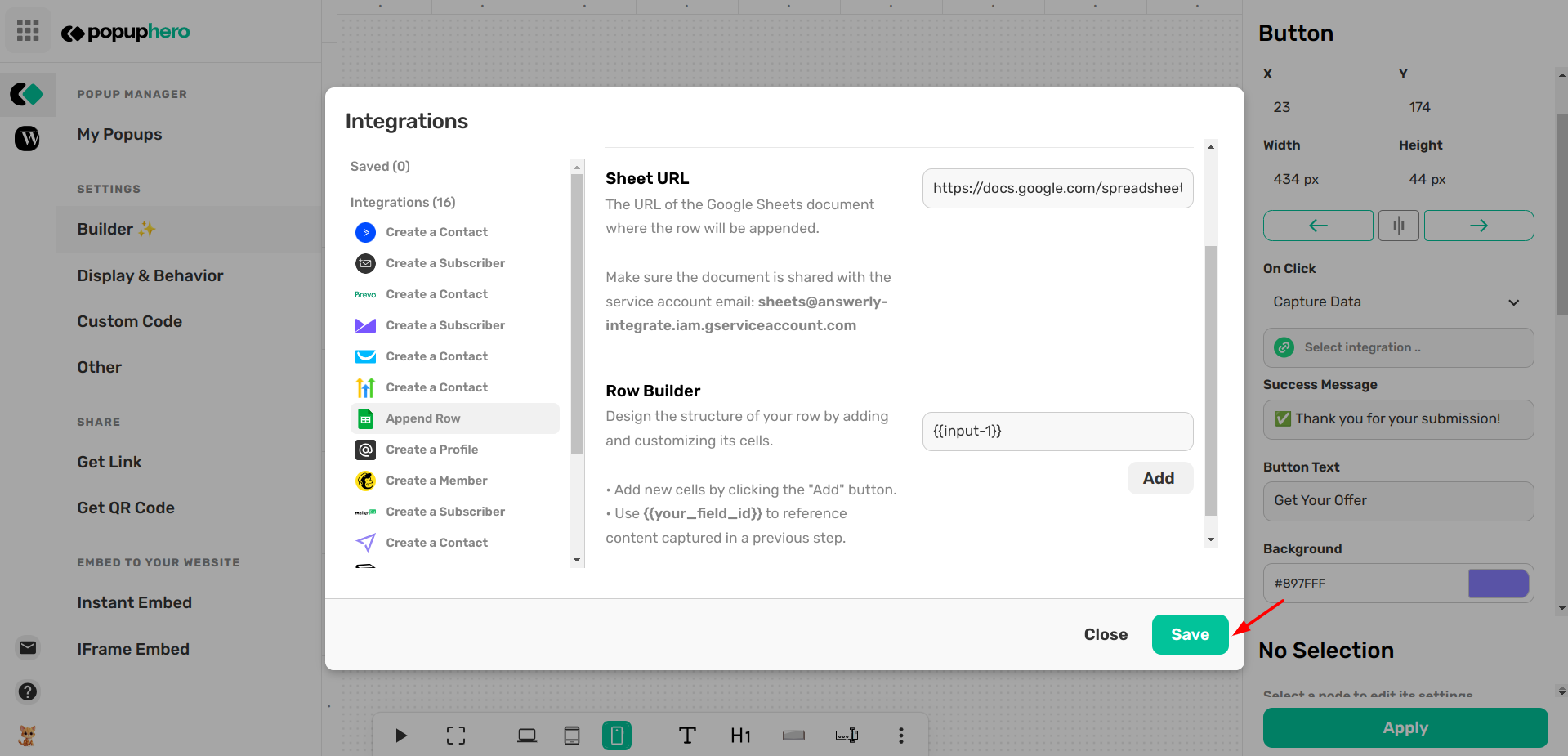
A modal will appear showing all available integrations. Find and select Append Row under the Google Sheets section in the sidebar. You will then need to fill in the following details:
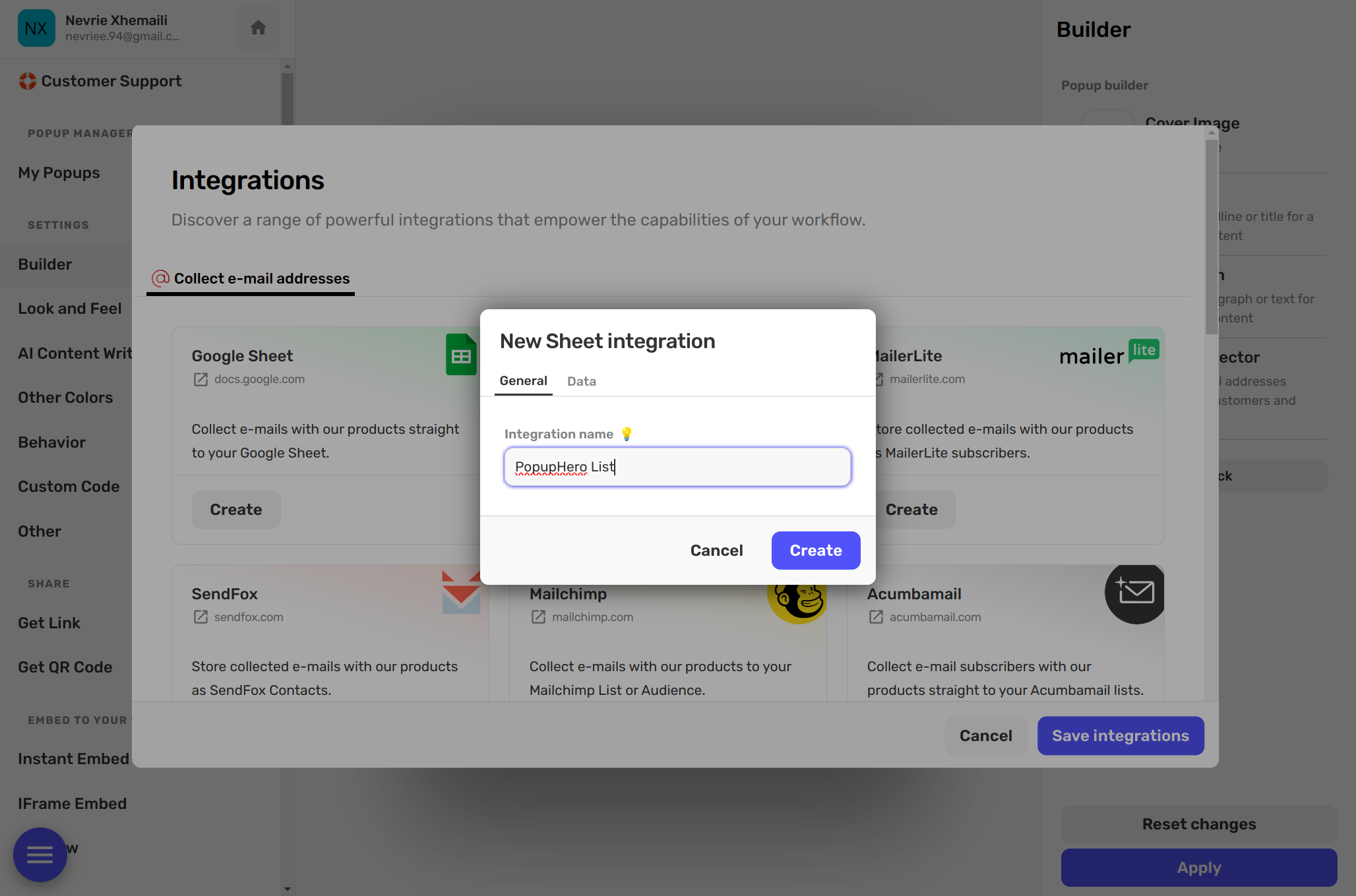
Integration Name
Give your integration a recognizable name (like "Newsletter Leads"). This helps you identify it across the PopupHero platform later.
Sheet URL
Copy and paste the full URL of your Google Sheets document into this field. This tells PopupHero exactly where to send the data.
Row Builder
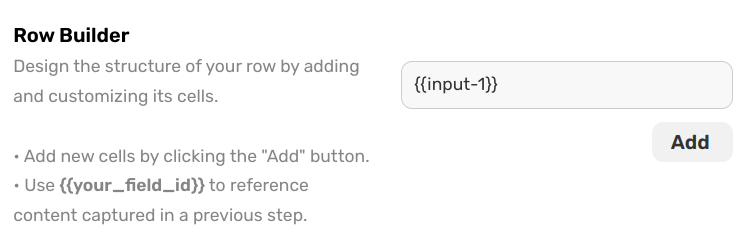
This is where you design exactly how your data appears in the spreadsheet:
- Add Cells: Click the Add button for every column you want to fill in your sheet.
- Reference Your Inputs: To pull data from your popup, you need to put the Input ID inside double curly braces.
- Automatic IDs: Select the pre-generated ID (like input-1 or input-2) that corresponds to the information you want to save.
4. Save and Test
Once you have mapped your fields in the Row Builder, click the green Save button in the modal. Finally, hit Apply in the main sidebar to lock in your settings.
Now, every time a visitor clicks your button, a new row will be instantly appended to your Google Sheet! 🚀