

Integrations & Data
Connecting to Brevo
Published @ 28/12/2025 by

Hey there, it's Nevrie! 👋
Want to turn your popup visitors into email subscribers automatically? Connecting to Brevo allows you to sync new leads directly to your marketing lists so you can start sending newsletters immediately.
Here is how to get it set up.
1. Get your Brevo API Key
To allow PopupHero to talk to your Brevo account, you’ll need a "secret key":
- Log in to your Brevo account.
- Navigate to your settings or use this direct link: https://app.brevo.com/settings/keys/api
- Create or copy your API Key.
2. Activate the Integration in the Builder
Head back to your PopupHero builder to link your account:
- Click on your Action Button (the one that submits the form).
- In the right sidebar, set the On Click action to Capture Data.
- Click on the Select integration field.
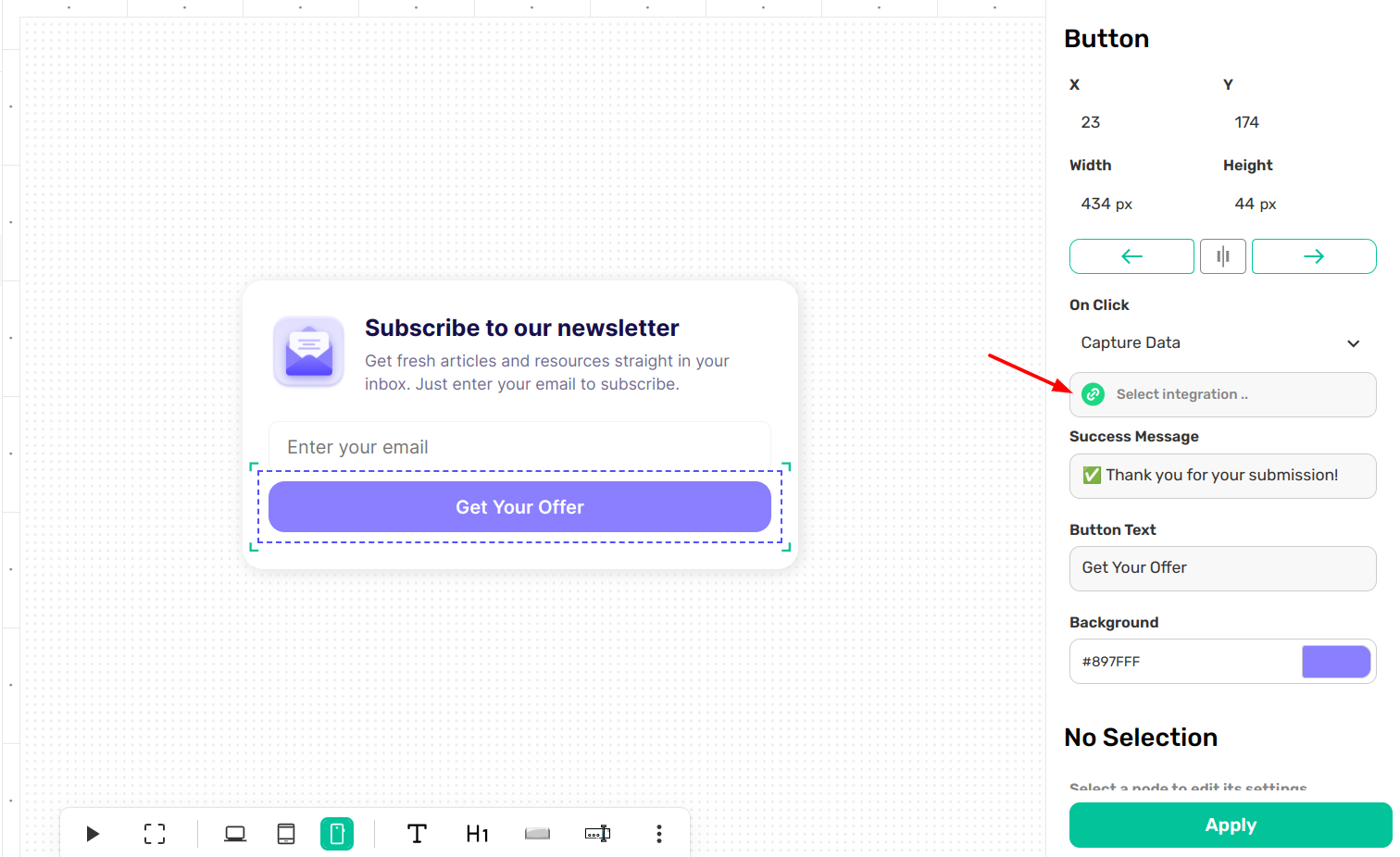
3. Configure the Brevo Modal
When the integrations modal opens, find Brevo (Create a Contact) in the sidebar. You will need to fill in the following details:
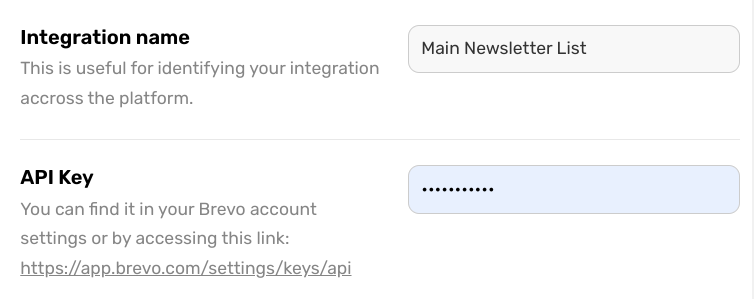
Integration Name & API Key
- Integration Name: Give this a name you'll recognize across the platform, like "Main Newsletter List."
- API Key: Paste the key you gathered from your Brevo settings.
Contact Email
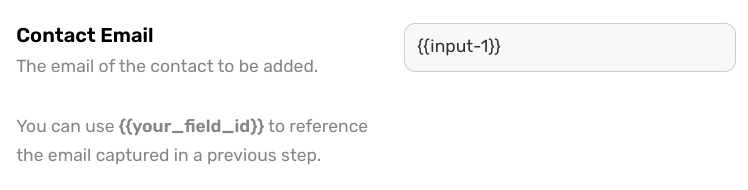
This is the most important part, telling Brevo which input field is the visitor's email address.
- Click the field to open the dropdown menu.
- Select the pre-generated ID (like input-1) that corresponds to your email input field.
Attributes & List ID
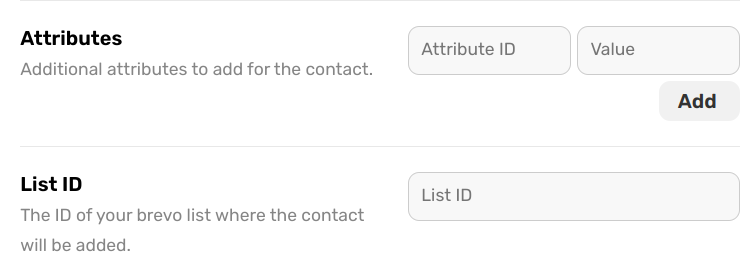
- Attributes: If you want to capture more data (like First Name or Phone Number), click Add to map additional fields from your popup to your Brevo contact attributes.
- List ID: Enter the ID of your specific Brevo list where the new contact should be added.
4. Save and Apply
Once you’ve filled in these details, click the green Save button in the modal. Finally, hit Apply in the main sidebar to lock in your settings.
Now, every time a visitor signs up, they'll be instantly added to your Brevo list! 🚀